Automating Siglent oscilloscope screen captures with SCPI and Python
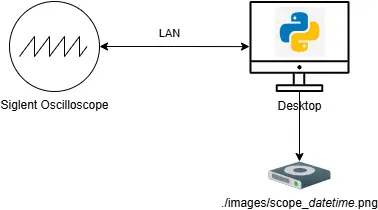
I’ve recently added a Siglent SDS814X HD oscilloscope to my lab and what I found myself frequently doing was taking screenshots of the waveforms and transferring them to my desktop using a USB stick. Once I connected the oscilloscope to the network, I realized that I could automate the entire workflow using Standard Commands for Programmable Instruments (SCPI). Now, I just press a hotkey on my desktop and the scope’s screenshot is immediately stored on my PC.
Although this example uses a Siglent SDS814X HD oscilloscope, the same approach can be applied to many SCPI-compatible laboratory instruments.
Why SCPI?
SCPI is a standardized command language that allows you to control lab equipment programmatically. It can be used to set configuration values, query measurements, save data, or automate repetitive actions. Oscilloscopes are not the only devices that support SCPI; power supplies, waveform generators, electronic loads and other lab instruments often support it as well.
Requirements
- Oscilloscope with SCPI support
- Network connection to the oscilloscope
- Python
- PyVISA package
- NI-VISA
Python script for screen capture using PyVISA
To automate the process, I created a Python script that sends the SCPI command to capture the oscilloscope screen and writes it to a local .png file.
In the Python code below, you’ll notice the SCPI command (:PRINt? PNG) for the screen capture. It instructs the oscilloscope to generate a PNG screenshot and returns the binary data over the SCPI connection. The script simply reads that binary stream and writes it directly to disk.
Please note that you’ll need the PyVISA package to send the command to the scope. You’ll also need to install NI-VISA from National Instruments which provides the necessary VISA drivers.
My oscilloscope was connected to the LAN. When listing the available VISA resources through the resource manager, the scope appeared as a resource starting with TCPIP0. Since my current lab setup only contains this oscilloscope, I was happy to select the first resource starting with TCPIP0.
from datetime import datetime
import logging
from pathlib import Path
import pyvisa
import sys

def capture_screenshot(oscope, filename):
    oscope.write(":PRINt? PNG")
    result_str = oscope.read_raw()
    with open(filename, 'wb') as f:
        f.write(result_str)

logging.basicConfig(level=logging.INFO, format="%(asctime)s %(levelname)s %(message)s", filename="capture_scope.log")

siglent_scope_resource: str | None = None

logging.info("Script started")

rm = pyvisa.ResourceManager()
logging.info(rm)

resources = rm.list_resources()
for resource in resources:
    logging.info("Found resource " + resource)
    if resource.startswith("TCPIP0"):
        siglent_scope_resource = resource

if siglent_scope_resource is None:
    logging.error("Siglent scope not found...")
    sys.exit()

logging.info("Siglent scope found: " + siglent_scope_resource)

try:
    oscope = rm.open_resource(siglent_scope_resource)
    oscope.chunk_size = 20*1024*1024
    logging.info(oscope.query("*IDN?"))

    output_dir = Path("./images")
    output_dir.mkdir(parents=True, exist_ok=True)
    filename = output_dir/datetime.now().strftime("scope_%Y%m%d_%H%M%S.png")
    capture_screenshot(oscope, filename)
finally:
    oscope.close()
    rm.close()

logging.info("Image written...")
Hotkey creation
The biggest productivity gain wasn’t the Python script itself. It was assigning the script to a hotkey. Now I simply press the shortcut and the image appears in my image folder.
To do this, a .bat file was created for the execution of the Python script. And then, as a final step, it was sufficient to create a shortcut on the desktop, define the hotkey, restart the desktop and start creating oscilloscope screenshots using the defined hotkey.
Future work
Since my lab setup is limited to the mentioned oscilloscope, a more complex resource selection didn’t seem necessary at this stage. Therefore, the resource is selected starting with TCPIP0. However, when new lab equipment arrives, there might be a need to more thoroughly identify the connected resources. I can see this happening using the SCPI command *IDN? to identify the equipment behind the specific resource string and go from there.
Another thing I have in mind is automatically configuring the vertical scale, offset and timebase for different Pico 2 measurements. That way, the waveform would immediately be visible on the oscilloscope screen with a useful scale before the screenshot is captured.
comments powered by Disqus